

Data import means loading records into a target system; data export means extracting records out of a source. Your immediate next step: decide whether you need a one-off file transfer, a scheduled job, or a fully automated ETL flow, then pick the format your destination system accepts.
Import and export of data is the automated or semi-automated movement of datasets between software applications. Every successful transfer follows three core phases: extract from the source, optionally transform the data, and load it into the destination. Skipping automation at any phase creates manual rekeying, which introduces data loss and operational silos.
Four core methods at a glance:
-
Manual file transfers (CSV, Excel): drag-and-drop or email-based; fine for one-off, low-volume jobs where you control both ends
-
Wizard or GUI jobs: built-in tools like the SQL Server Import and Export Wizard or Dynamics 365’s Data Management workspace; faster to configure, but limited repeatability without pairing them with scheduling
-
Scripted or automated ETL and API flows: SSIS packages, BCP scripts, REST API calls, or cloud pipeline services; the right choice for recurring, high-volume, or compliance-sensitive transfers
-
AI-assisted document ingestion: when the source is a PDF, image, or scanned statement rather than a structured file (common in family-office and wealth workflows), an AI ingestion layer parses the document and pre-fills structured entries for operator review — the shortcut around the entire field-mapping problem
Immediate next steps:
-
Define scope: single file, a set of tables, or an entire database
-
Choose your destination format (CSV, JSON, XML, BACPAC)
-
Set up a test or staging environment before touching production data
Pro Tip: Before you write a single line of code or open any wizard, document who owns the source data and who owns the target. Ambiguous ownership is the number-one cause of failed rollbacks.
Key Takeaways
Reliable data import and export requires scoping your job, testing in staging, validating counts and checksums, and logging every run before you ever touch production data.
| Point | Details |
|---|---|
| Scope and format first | Define which entities transfer and lock in format, encoding, and date settings before writing any script. |
| Always stage before production | Run 100–500 rows in a test environment and verify field mapping, counts, and edge cases before a full load. |
| Validate counts and checksums | Compare source and target row counts after every load; check for nulls and duplicate keys before signing off. |
| Automate logging from day one | Capture job ID, timestamps, file size, record counts, and error summaries on every run for audit and troubleshooting. |
| GCA-FopFo for multi-asset transfers | Centralizes imports and exports across holdings, currencies, benefits, and family-tree data with a shared audit trail. Exports in CSV, JSON, PDF (15 languages incl. RTL), and GEDCOM. Direct AI-assisted PDF/image ingestion via the AI Statement Reader - no field mapping required. |
Table of Contents
-
What does the data import and export process look like end to end?
-
How do you handle large or complex imports without breaking things?
-
What are the most common import/export errors and how do you fix them?
-
Should you build your own import/export process or use a managed platform?
-
GCA-FopFo gives you centralized import/export for family assets
What does the data import and export process look like end to end?
A repeatable transfer job follows six ordered steps. Skipping any one of them tends to surface as a production incident later.
-
Plan. Define scope, identify stakeholders, and write a rollback plan. Back up the target before any load. Confirm that the source is in a stable, queryable state.
-
Extract. Choose your source connector, test read access with a small query, and confirm row counts against a known baseline. Never assume the source is complete.
-
Transform. Map source fields to target fields, convert data types, normalize values (trim whitespace, standardize date formats, unify enumerations), and run cleansing rules. This is where most errors originate.
-
Load. Decide between truncate-and-reload versus merge/append, then sequence entities to respect foreign-key dependencies. Load parent tables before child tables.
-
Validate. Reconcile row counts, run checksums or hash comparisons on critical columns, and spot-check a sample of business-critical records manually.
-
Operate. Schedule recurring jobs, set up monitoring alerts for failures, and write every run to an audit log with timestamp, record counts, and status.
Pro Tip: Write your rollback plan before you write your load script. If you can’t describe in two sentences how to undo the load, you’re not ready to run it.
Dynamics 365’s Data Management workspace surfaces job history, execution status, and entity sequencing in one place, which makes this six-step model concrete and auditable in practice.
How do you create an import or export job in practice?
Most tools, from Dynamics 365 to SQL Server to cloud pipeline services, follow the same job-creation pattern. Here is a reproducible walkthrough.
-
Define scope and entities. List every table, object, or file going in or out. For a Dynamics 365 import, this means selecting data entities from the Data Management workspace and assigning them to a project category. For a SQL Server job, it means identifying source and destination tables or files.
-
Choose format and options. Select CSV, JSON, XML, or BACPAC. Set the delimiter (comma vs. tab), character encoding (UTF-8 is the safe default), and date format (ISO 8601:
YYYY-MM-DD). Lock these settings in writing before the first test run. -
Decide truncation and entity sequence. Determine whether the target table should be cleared before load (truncate) or whether incoming rows should merge with existing ones (append/upsert). Sequence entities so parent records load before any child record that references them via a foreign key.
-
Stage a sample load. Run a sample load of some rows into a test environment. Inspect the results: check that field values landed in the right columns, that dates parsed correctly, and that no rows were silently dropped.
-
Execute the full job with monitoring. Run the complete job, watch for errors in real time, and capture the run log. Set a timeout threshold appropriate to your data volume.
-
Post-run validation. Compare source and target row counts, check for nulls in required fields, and verify at least five business-critical records end-to-end.
Sequencing decision checklist:
-
Truncate when: the target is a staging table, you control the full dataset, and downstream consumers can tolerate a brief empty-table window
-
Merge/append when: the target holds live data, partial updates are acceptable, and you have a reliable unique key to match on
-
Always load reference/lookup tables first, then transactional records, then derived or aggregate tables
Which file formats and field mappings should you use?
Choosing the right format
Each format fits a different job. CSV and TSV are the most portable: every major database, spreadsheet, and ETL tool reads them, and they are easy to inspect in a text editor. JSON is the standard for REST API payloads and works well for nested or hierarchical records. XML is the right choice when the destination requires strict schema enforcement or nested elements with attributes, such as financial messaging standards. BACPAC is specific to SQL Server and Azure SQL Database: it packages both schema and data into a single portable file, making it the preferred format for full-database migrations or point-in-time snapshots.
One format the general ETL literature rarely mentions but every family-office workflow needs is GEDCOM — the genealogy-standard file format used by Ancestry, MyHeritage, FamilySearch, and RootsMagic. If your platform touches family structure, beneficiary mapping, or multi-generational governance, GEDCOM import/export is what keeps your data portable across the tools your family already uses.
Field mapping pattern
Every mapping follows three columns: source field, transform rule, and target field. The transform rule is where most errors hide.
| Source column | Transform rule | Target column |
|---|---|---|
order_date (string, MM/DD/YYYY) | Parse to date, reformat as YYYY-MM-DD | order_date (DATE) |
amount (string, currency formatted) | Strip $ and ,, cast to DECIMAL(10,2) | amount (DECIMAL) |
status_code (int: 1, 2, 3) | Map 1→Active, 2→Inactive, 3→Pending | status (VARCHAR) |
customer_name (mixed case) | TRIM + UPPER | customer_name (VARCHAR) |
Common pitfalls
-
Encoding mismatches. A file exported as Windows-1252 and imported expecting UTF-8 will corrupt accented characters and special symbols. Always specify encoding explicitly at both ends.
-
Commas inside quoted fields. A CSV field containing a comma must be wrapped in double quotes. If your export tool doesn’t quote fields automatically, add that option before exporting.
-
Date and timezone drift. A timestamp stored as local time in the source will shift if the target stores UTC. Decide on a canonical timezone at the start of the project and convert at the transform step.
-
Decimal separators. European locales use a comma as the decimal separator. If your source data comes from a mixed-locale environment, normalize to a period before loading.
Pro Tip: Always open a sample export file in a plain text editor, not Excel, before running a full load. Excel silently reformats dates and leading-zero strings, hiding the exact encoding and delimiter problems you need to see.
What tools and methods work best for data transfers?
The right tool depends on three variables: scale, repeatability, and your team’s technical depth.
-
Wizard and GUI job creators. The SQL Server Import and Export Wizard (part of SSDT/SSMS) and Dynamics 365’s Data Management workspace are the fastest way to configure a one-off job. They require no scripting and surface errors in a readable UI. The trade-off: wizards lack built-in repeatability and auditability unless you export the generated SSIS package and schedule it separately.
-
Command-line utilities. BCP (Bulk Copy Program) is the workhorse for SQL Server bulk loads and exports. A basic export command looks like this:
bcp DatabaseName.dbo.TableName out "output.csv" -c -t, -S ServerName -TThis exports
TableNameto a comma-delimited CSV using Windows Authentication. Swap-Tfor-U username -P passwordfor SQL login. BCP handles millions of rows efficiently and fits naturally into scheduled scripts or CI/CD pipelines.
-
ETL and integration platforms. SQL Server Integration Services (SSIS) is the standard for complex, multi-step SQL Server pipelines. For cloud-native workloads, Azure Data Factory and AWS Glue handle scheduled, monitored data-movement jobs with built-in retry logic and logging. These platforms are the right choice when transforms are complex, jobs run on a schedule, or compliance requires a full audit trail.
-
APIs for continuous synchronization. REST and GraphQL APIs suit real-time or near-real-time sync between systems. They are more complex to build and maintain than file-based transfers, but they eliminate the latency of batch windows and work well for fintech operational handoffs where data format conversion must happen across financial systems in near real time.
-
AI-assisted document ingestion. For domains like family-office holdings where the source is a PDF or image statement rather than a structured file, a purpose-built ingestion layer such as the GCA-FopFo AI Statement Reader parses the document with a large language model, extracts positions/dates/amounts, and hands the operator a review queue — bypassing the traditional "map source fields → target fields" step entirely. Best fit when the source system doesn't offer a structured export.
Cloud database services like Azure SQL Database offer both UI and programmatic import/export paths. Planning for both means operations teams can run ad-hoc fixes through the wizard while automation runs through the scripted path, without the two diverging over time.
How do you validate transfers and maintain an audit log?
Validation is not optional. A load that completes without errors is not the same as a load that is correct.
Pre-flight checks:
-
Compare source row count against expected baseline before extracting
-
Run a schema compatibility check: confirm every source column maps to a target column with a compatible data type
-
Pull a 10-row sample from the source and manually verify it looks right
Post-load validation:
-
Reconcile row counts:
SELECT COUNT(*) FROM target_tableshould match the source count -
Check for nulls in required fields:
SELECT COUNT(*) FROM target_table WHERE required_field IS NULL -
Find duplicate keys:
SELECT key_col, COUNT(*) FROM target_table GROUP BY key_col HAVING COUNT(*) > 1 -
Spot-check five to ten business-critical records end-to-end, comparing source and target values field by field
Audit log fields to capture on every run:
-
Job ID and job name
-
Timestamp (start and end, UTC)
-
Source file name and file size in bytes
-
Record count: attempted, loaded, rejected
-
User or service account that triggered the job
-
Status (success, partial, failed)
-
Error summary (first N error messages)
Informatica’s guidance on data transfer is direct: logging and tracking metadata, including file size and timestamps, is a baseline requirement for regulatory audits and for diagnosing failures after the fact. Without it, troubleshooting a failed load becomes guesswork.
Statistic callout: A transfer job with no audit log has no provenance. When a regulator or an internal auditor asks “what changed and when,” the answer has to come from a log, not from memory.
What security controls does a data transfer require?
Security for data transfers covers three layers: the data in motion, the data at rest, and the people and processes touching both.
Encryption and access:
-
Encrypt files in transit using TLS 1.2 or higher; never transfer sensitive files over unencrypted FTP
-
Encrypt files at rest using AES-256 for stored exports and backup files
-
Use service accounts with least-privilege permissions: read-only on the source, write-only on the target staging area
-
Rotate credentials and API keys on a defined schedule; use short-lived temporary credentials where the platform supports them (AWS IAM roles, Azure Managed Identities)
PII and compliance:
-
Identify PII fields before export: names, Social Security Numbers, account numbers, dates of birth
-
Mask or redact PII in non-production environments; never load real PII into a dev or test database
-
Under U.S. frameworks such as HIPAA (health data) and GLBA (financial data), audit logs for data transfers must be retained for a defined period, typically six years for HIPAA and five years for GLBA. Confirm the specific retention requirement for your data category with your compliance team
-
Document consent and legal basis for any cross-border transfer
Roles and permissions example for a typical import job:
-
Source DBA: read access to source tables; no write access to target
-
ETL service account: read on source, write on target staging table, no access to production tables
-
Import operator: can trigger jobs and view logs; cannot modify job definitions or access raw files
-
Audit reviewer: read-only access to audit log tables; no access to data tables
Secure enterprise data transfers beyond your perimeter require partner-level agreements that specify encryption standards, logging obligations, and breach notification timelines. Get those terms in writing before the first file leaves your network.
Pro Tip: Run a data classification scan on your export file before it leaves the building. Tools like Microsoft Purview or open-source alternatives can flag PII columns you didn’t know were in the dataset.
How do you handle large or complex imports without breaking things?
Large transfers fail in predictable ways: timeouts, lock contention, and optimistic timeline estimates that ignore real-world overhead. Here is how to avoid each.
-
Batch and chunk the load. Split large datasets into manageable chunks per batch. Smaller batches reduce lock duration, make partial failures recoverable, and let you resume from a known checkpoint rather than restarting from zero.
-
Disable non-clustered indexes and constraints before loading, rebuild after. Inserting rows one at a time while indexes are live multiplies I/O cost. Drop or disable non-clustered indexes and foreign-key constraints before a bulk load, then rebuild and re-enable them after. This single step can cut load time by 50–80% on large tables.
-
Account for network and I/O limits. Raw bandwidth is not your actual throughput. Google Cloud’s large-dataset transfer guidance makes this concrete: Moving very large datasets over a 1 Gbps link has a theoretical raw time that is long, but real timelines grow when you add validation passes, network retries, and administrative overhead. Plan with at least a 1.5–2× buffer on top of your raw estimate.
-
Monitor in real time and have a rollback script ready. Watch row counts and error rates as the job runs. If error rates exceed a threshold you set in advance (say, more than 0.1% of rows rejected), stop the job, investigate, and fix before continuing. Your rollback script should restore the target to its pre-load state in one command.
For very long-running jobs, design them to be idempotent: running the same job twice should produce the same result, not duplicate data. A surrogate key or a hash of the source record makes idempotency straightforward to implement.
What are the most common import/export errors and how do you fix them?
Most failures fall into five categories. Each has a targeted fix.
-
Mapping mismatches and type conversion errors. A VARCHAR field in the source mapped to an INT in the target will reject every non-numeric value. Fix: add a validation row to your transform that casts the field and flags rows where the cast fails, before the load runs.
-
Encoding and delimiter problems. Garbled characters or extra columns in the output almost always trace back to an encoding mismatch or an unescaped delimiter. Fix: re-export with an explicit
--encoding UTF-8flag and verify that text fields containing delimiters are quoted. Check with:file -i yourfile.csvon Linux/macOS to confirm the encoding. -
Duplicates and key-constraint failures. The target rejects rows because a primary or unique key already exists. Fix: run a deduplication query on the source before loading, or switch to an upsert (MERGE) strategy. Use a surrogate key if the natural key is unreliable.
-
Partial loads and timeouts. The job completes 80% of rows and then times out. Fix: increase the command timeout in your connection string, reduce batch size, or switch to a resumable transfer method that tracks the last successfully loaded batch ID.
-
Silent data loss. Rows load without errors but counts don’t match. Fix:
SELECT COUNT(*) FROM sourcevs.SELECT COUNT(*) FROM targetimmediately after load. If counts differ, query for rows present in source but absent in target using a LEFT JOIN on the primary key.
Pro Tip: Add a “canary row” to your test dataset: a record with known, unusual values (a date in 1900, a name with special characters, a maximum-length string). If the canary lands correctly in the target, your transform pipeline handled edge cases. If it doesn’t, you found the bug before it hit real data.
Should you build your own import/export process or use a managed platform?
The honest answer depends on four variables: how often you transfer data, how many systems are involved, your compliance exposure, and whether your team has the bandwidth to maintain custom scripts.
Decision checklist:
-
Transfer frequency: one-time or occasional → DIY is fine; weekly or daily → managed platform pays off quickly
-
System count: two systems → DIY is manageable; three or more → mapping and sequencing complexity grows fast
-
Compliance risk: low → DIY with good logging is sufficient; HIPAA, GLBA, or SOC 2 scope → managed platform with built-in audit trails reduces risk materially
-
Internal skills: strong engineering team → DIY; mixed or non-technical team → managed platform lowers the operational burden
-
Centralized auditing: not required → DIY; required across multiple asset classes or currencies → managed platform
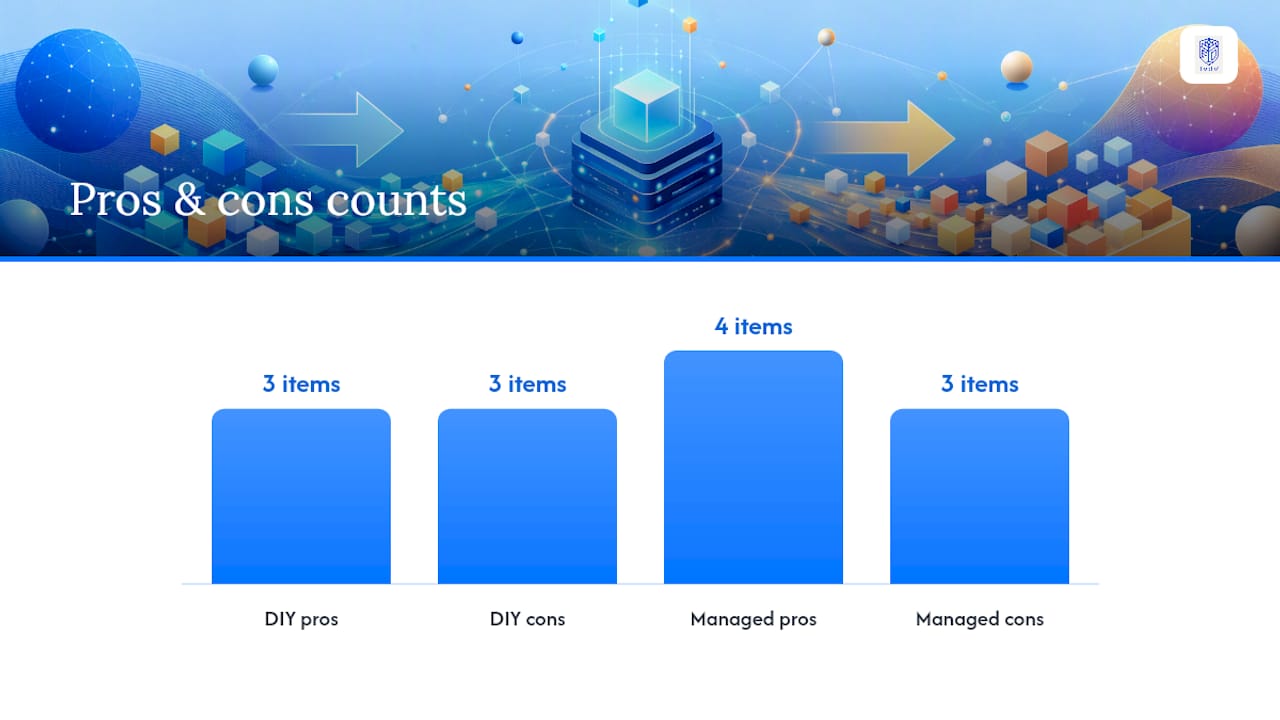
DIY pros and cons:
-
Pros: full control over logic, no vendor dependency, lower upfront cost for simple jobs
-
Cons: maintenance burden grows with complexity, audit logging requires custom build, harder to onboard non-technical operators
Managed platform pros and cons:
-
Pros: built-in scheduling, logging, and error handling; faster onboarding; vendor-managed updates; centralized audit trail
-
Cons: recurring subscription cost, less flexibility for highly custom transforms, dependency on vendor roadmap
For multi-asset clients managing holdings, currencies, and benefits across several accounts, a managed family-office platform can centralize imports and exports under a single audit trail, which materially cuts reconciliation time. That is a meaningful operational advantage when the alternative is maintaining separate scripts for each data source.
The part most guides skip: staging is not optional
Every practitioner who has run a failed production import shares one regret: they skipped the staging run. The logic at the time always sounds reasonable. The dataset is small. The mapping looks clean. The deadline is close. None of those reasons hold up after a truncated production table.

The real lesson from years of data transfer work is simpler than most guides make it sound. Staging is not a quality-control step you add when you have time. It is the step that tells you whether your transform rules are correct before the cost of being wrong is a production outage. A small sample load into a test environment takes a short amount of time. A production recovery can take days.
The second thing most guides understate is sequencing. Foreign-key violations during an import are almost never a data quality problem. They are a sequencing problem. The child record arrived before the parent. Fix the order, not the data.
Audit logging deserves the same respect. Logging metadata like file size and timestamps is not bureaucratic overhead. It is the only way to answer “what happened and when” six months after a job ran. Build the log into the job definition from day one, not as an afterthought.
GCA-FopFo gives you centralized import/export for family assets
Managing data transfers across holdings, currencies, and benefit accounts is where generic ETL tooling starts to break down. Each new data source adds another mapping to maintain, another log to check, and another failure mode to document. A purpose-built family-office platform removes most of that surface area - because the entities, currencies, and audit trail are already there.

Managing data transfers across holdings, currencies, and benefit accounts is where generic ETL tooling starts to break down. Each new data source adds another mapping to maintain, another log to check, and another failure mode to document. A purpose-built family-office platform removes most of that surface area — because the entities, currencies, and audit trail are already there.
GCA-FopFo's Full Option Family Office platform brings your imports and exports together in one place, with a shared audit trail across every module. What sets it apart from generic ETL tooling and from other family-office platforms:
| Direction | Format | Suite module | What it covers |
| Import | Uploaded PDF / image / screenshot | BoxAlong™ (AI Statement Reader) | Auto-extract positions, dates, and amounts from any custodian statement — no field-mapping required |
| Import | GEDCOM | Familigi™ | Family trees from Ancestry, MyHeritage, FamilySearch, RootsMagic |
| Import | Guided form entry | All 5 apps | Any asset, person, currency, benefit, license |
| Export | CSV | All 5 apps | Universal spreadsheet / database / ETL input |
| Export | JSON | All 5 apps | Direct API / Power BI / custom-app consumption |
| Export | PDF (15 languages, incl. right-to-left) | All 5 apps | Trustee packs, audit packs, principal reports |
| Export | GEDCOM | Familigi™ | Return to any genealogy tool |
| Export | Full encrypted backup archive | Master Enabler | Restore-ready archive including attachments |
| Governance | Tamper-evident audit trail | Suite-wide | Actor, timestamp, source-document hash — on every import and every export |
Your data belongs to you. GCA-FopFo is the only family-office suite we know of that exports every record in every module in CSV, JSON, PDF, and GEDCOM for family-tree data — in 15 languages including right-to-left — with no export throttle, no per-record fee, and no vendor lock-in. When you're ready to see it, visit the GCA-FopFo platform and request a walkthrough of the import and export capabilities.
Sources
These references were used to prepare this guide. Each covers a specific aspect of the data transfer process in depth.